How to Read Tab-Separated DAT Files
You can read a tab-separated DAT file when the contents are plain text and each field is separated by a tab character instead of a comma, semicolon, or pipe.
These files can look confusing because tab characters are usually invisible. In a normal text editor, the data may appear as columns with large spaces between values. A table-aware DAT viewer can detect those tab characters and split the records into clear rows and columns.
If each line contains several values with wide, consistent gaps between them, the file may be tab-separated. The gaps are often real tab characters rather than groups of ordinary spaces.
What Is a Tab-Separated DAT File?
A tab-separated DAT file is a text file where a tab character separates one field from the next.
It works much like CSV data, except it uses tabs instead of commas.
What you may see
1001 Aisha Active
What is really there
1001[TAB]Aisha[TAB]Active
The tab itself is a control character. It moves the next value to another tab position when displayed in many editors.
This makes tab-separated data look neatly aligned in some programs, but it can also make the delimiter harder to identify by eye.
What Tab-Separated DAT Data Looks Like
A customer file might contain four fields per record:
customer_id	name	country	status
1001	Aisha	Pakistan	Active
1002	Daniel	Canada	Active
1003	Sofia	Spain	Inactive
Once parsed correctly, this becomes a normal four-column table.
The Main Parts of a Tab-Separated DAT File
One record per line
Each line commonly represents one complete record.
Field separators
Tab characters mark the boundary between fields.
Column names
The first row may explain what each field represents.
Actual data
Names, dates, IDs, numbers, and other values fill each column.
How to Read a Tab-Separated DAT File
Confirm that the file contains readable text
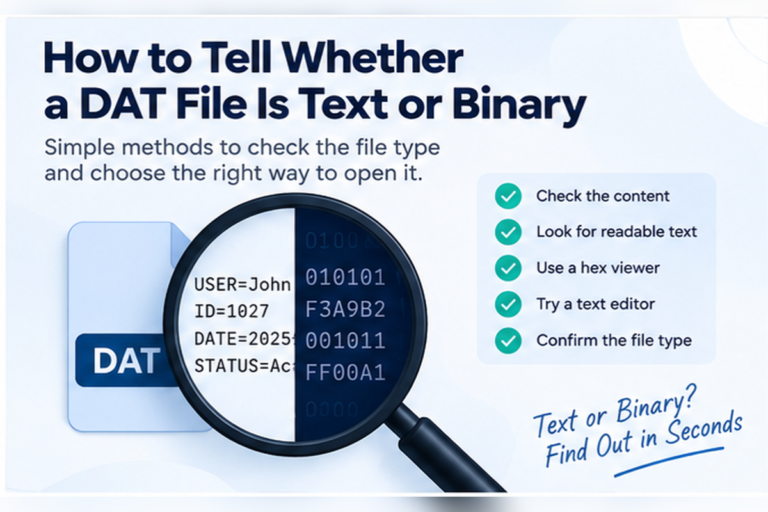
Open it in a text or DAT viewer. If you see recognizable words, numbers, and rows, continue. If the file is mostly unreadable, it may be binary instead.
Look for consistent gaps between values
Wide spaces that repeat in the same positions can indicate tab characters. Compare several lines rather than judging one row.
Check the first row for field names
A line such as id[TAB]name[TAB]date[TAB]status makes the structure much easier to understand.
Count the fields in several records
Healthy tabular data usually has a predictable number of columns. One row with fewer or extra fields deserves closer inspection.
Switch to a table view
A viewer that detects tabs can separate the fields automatically and show each record in a row.
Export or import only after the structure looks correct
Once the table is aligned, you can move the data into CSV, Excel, or another spreadsheet workflow if needed.
Your DAT File Viewer can detect common tab, comma, semicolon, and pipe-separated text and display suitable data in a table view.
How to Tell Tabs From Ordinary Spaces
This is one of the most common problems when inspecting tab-separated files.
Visually, tabs and repeated spaces can look almost identical.
For example, these two lines may look similar:
1001    Aisha    Active
1001	Aisha	Active
A parser treats them very differently.
If your tool supports visible whitespace or delimiter detection, use it. Otherwise, copy the data into an editor that can show hidden characters.
Why Tab-Separated DAT Files Are Used
Tabs can be convenient when the data contains many commas.
Imagine a product description containing:
Compact, wireless, rechargeable keyboard
In CSV, that value needs proper quoting because the commas could otherwise be treated as separators.
In tab-separated data, those commas can remain ordinary characters because the actual field boundary is the tab.
Tab-Separated vs CSV-Style DAT Data
| Feature | Tab-separated DAT | CSV-style DAT |
|---|---|---|
| Main delimiter | Tab character | Comma |
| Delimiter visible? | Usually no | Yes |
| Commas inside text fields | Usually easy to keep | Often require quoting |
| Human readability | Can look aligned in editors | Easy to recognize by commas |
| Spreadsheet friendly | Yes | Yes |
If your file uses commas instead, see How to Read CSV-Style Data Inside a DAT File.
What Does a Header Row Look Like?
A tab-separated DAT file often starts with field names.
sku	product	stock	price
A101	Keyboard	28	29.95
A102	Mouse	54	18.50
A103	Monitor	11	189.00
A viewer should display this as:
| sku | product | stock | price |
|---|---|---|---|
| A101 | Keyboard | 28 | 29.95 |
| A102 | Mouse | 54 | 18.50 |
| A103 | Monitor | 11 | 189.00 |
What If There Is No Header Row?
You can still read the records, but you may not know what each field means.
Suppose the file contains:
1001	Aisha	2026-09-10	1
1002	Daniel	2026-09-11	1
1003	Sofia	2026-09-12	0
You might infer that the last value is a status flag, but you should not treat a guess as confirmed structure.
Look at the application that created the file, surrounding documentation, or similar records.
If the source is unknown, see How to Find Out What Created a DAT File.
What If Some Fields Are Empty?
Tab-separated files can contain empty fields.
For example:
id	name	email	status
1001	Aisha	aisha@example.test	Active
1002	Daniel		Active
1003	Sofia	sofia@example.test	Inactive
A good parser keeps that blank field rather than shifting the status value into the email column.
Common Problems When Reading Tab-Separated DAT Files
Everything appears in one column
The software may not be treating tabs as delimiters. Import the file again and select tab as the separator.
Some rows shift left
A record may have a missing field or missing tab character.
Some rows shift right
An unexpected tab may exist inside a value, creating an extra field.
Characters look broken
The text encoding may be wrong, even if the tab structure itself is valid.
What If a Value Contains a Tab Character?
This can complicate parsing.
A tab-separated format depends on tabs marking field boundaries. If a value itself contains a raw tab, the parser may treat it as another column unless the format has a defined escaping or quoting rule.
There is no universal rule for every custom DAT file.
You need to know how the application represents special characters inside values.
Can Excel Read a Tab-Separated DAT File?
Yes, when the DAT file contains ordinary tab-delimited text.
Import the file as text and select tab as the delimiter. Excel should then split each record into columns.
Review the preview before loading the data.
Pay special attention to:
- Leading zeros
- Date-like identifiers
- Long numeric codes
- Empty fields
- Text encoding
For the full Excel workflow, see Can You Open a DAT File With Excel?.
Can Google Sheets Read Tab-Separated DAT Data?
Yes, once the data is moved through a supported text or spreadsheet import workflow.
Tab-separated data is naturally table-shaped, so it can work well in Google Sheets after the file structure has been confirmed.
As with Excel, inspect the source first. Google Sheets cannot decode an unrelated binary DAT file just because the filename ends in DAT.
See Can You Open DAT Files With Google Sheets?.
Can Notepad Read Tab-Separated DAT Files?
Notepad can show the text, but it may not make the table structure obvious.
Tabs can appear as large spaces, so columns may look roughly aligned without clearly showing the separator.
Notepad is useful for a quick raw-text check. A table-aware viewer is better when you want to confirm fields and records.
For more detail, see Can You Open a DAT File With Notepad?.
How to Check Whether the Data Is Really Tab-Separated
Use this checklist
The file is mostly readable text.
Values appear in repeated column-like positions.
A viewer detects tab as the delimiter.
Several rows contain the same number of fields.
Empty fields do not shift later values into the wrong columns.
What If the File Mixes Tabs and Spaces?
Mixed whitespace can make a DAT file harder to parse.
A program might use tabs between major fields while also using spaces inside values.
For example:
101	Wireless Keyboard	29.95
102	Gaming Mouse	44.50
103	USB C Hub	36.00
Do not split the file on every space. That would turn Wireless Keyboard into two fields even though it is one value.
What If the File Uses Both Tabs and Commas?
That does not always mean the file is malformed.
A tab may separate fields while commas are part of the field content.
For example:
1001	Karachi, Sindh	Active
1002	Toronto, Ontario	Active
Here, the tab is the true delimiter. The commas belong inside the location value.
This is one reason you should identify the actual separator before importing the file.
Tab-Separated DAT Files and Database Records
Applications sometimes use tab-separated text as a simple way to store records.
One row may represent one customer, transaction, product, log entry, or configuration object.
If your DAT file looks like a record store rather than a normal spreadsheet export, see How to Read Database Records Stored in a DAT File.
Can You Convert a Tab-Separated DAT File to CSV?
Yes, when the structure is understood correctly.
A row like:
1001 Aisha Active
can become:
1001,Aisha,Active
However, a real conversion should handle field contents properly. If a value contains commas, CSV quoting rules may be required.
Why Renaming DAT to TSV Does Not Convert It
Changing the filename from:
records.dat
to:
records.tsv
does not modify the underlying data.
If the original file already contains tab-separated text, the new extension may help some programs recognize it. The structure was already tab-separated before the rename.
If the DAT file is binary, changing the extension to TSV will not turn it into tabular text.
What About Large Tab-Separated DAT Files?
Large files can contain hundreds of thousands of records.
Before loading the whole file into spreadsheet software, preview a section and confirm the structure.
Check:
- The number of columns
- The presence of a header
- The delimiter
- Empty fields
- Encoding
- Whether later rows keep the same structure
Your DAT viewer includes preview limits and large-file protection, which can help with initial inspection.
Best Workflow for Reading Tab-Separated DAT Data
A reliable process is:
- Open the DAT file without renaming it.
- Confirm that the content is readable text.
- Check whether repeated gaps are real tabs.
- Look for a header row.
- Compare several records for consistent field counts.
- Use table view to verify the columns.
- Export or import the data only after the layout is correct.
This avoids damaging the original file or forcing the wrong delimiter onto the data.
Need to Check a Tab-Separated DAT File?
Inspect the raw text, detect tab-separated fields, preview compatible data as a table, search the contents, and decide whether CSV export or spreadsheet import makes sense.
Open DAT File ViewerFrequently Asked Questions
What is a tab-separated DAT file?
It is a DAT file containing text records where tab characters separate one field from the next.
How can I tell if a DAT file uses tabs?
Look for repeated column-like gaps and use a viewer that can detect tab delimiters or display hidden whitespace.
Can Excel open a tab-separated DAT file?
Yes. Import the DAT file as delimited text and select tab as the field separator.
Can I convert a tab-separated DAT file to CSV?
Yes, as long as the rows and fields are understood. Proper conversion should also handle commas and quotation marks inside field values.
Why does everything appear in one column?
Your program may not be recognizing tabs as delimiters. Choose tab explicitly during the import or parsing step.
Are tabs the same as several spaces?
No. A tab is one control character. Several spaces are separate space characters. They may look similar but parsers treat them differently.
Can a binary DAT file be tab-separated?
True tab-separated records are normally text. A binary file may contain occasional tab bytes, but that does not mean it should be parsed as a tabular text file.
Tab-Separated DAT Files Are Simple Once You Find the Hidden Delimiter
The main challenge with tab-separated DAT files is that the delimiter is usually invisible.
Once you confirm that tabs separate the fields, the structure becomes much easier to understand. Each line represents a record, and each tab marks the transition from one field to the next.
Check headers, empty fields, encoding, and field counts before moving the data into Excel, Google Sheets, or CSV.
If the file is not readable text, do not force it into a tab-separated structure. It may be a binary DAT file that requires hexadecimal inspection or the original application.
You can inspect your DAT file online to check text, detect common delimiters, preview table-style data, and decide what format you actually have.