Can You Open a DAT File With Excel?
Yes, Excel can open some DAT files, but only when the data inside is compatible with a spreadsheet. Excel works best when the DAT file contains text arranged in rows and columns.
A DAT file that uses commas, tabs, semicolons, or pipe characters to separate values may import cleanly into Excel. A binary DAT file, game resource, private database, or application-specific file will usually not.
Use Excel when the DAT file contains structured text. If you can see repeated rows and consistent separators, Excel may be a good choice. If the file is mostly unreadable or binary, use a DAT viewer, hex viewer, or the original application instead.
When Excel Works Well With DAT Files
Delimited text
Rows use commas, tabs, semicolons, or pipes to separate values into fields.
Fixed or simple records
The file contains readable lines that can be split or cleaned into useful columns.
Binary data
The file contains raw bytes, game resources, proprietary records, or other non-text data.
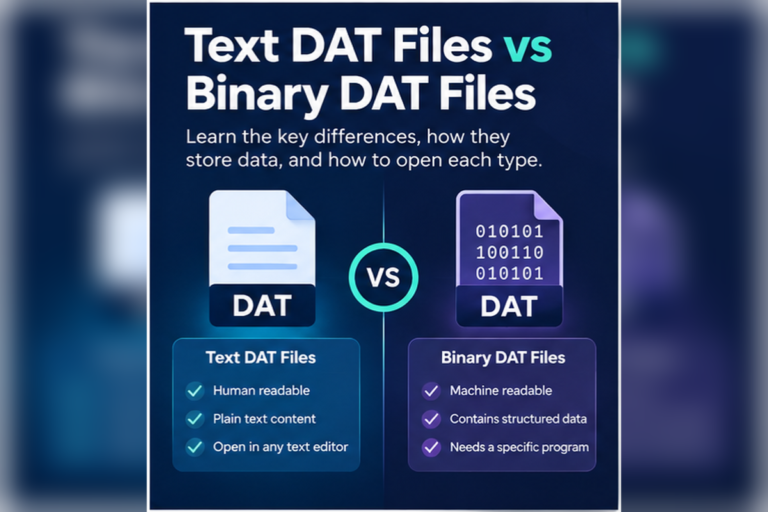
The main thing to understand is that .dat does not mean spreadsheet. DAT is a generic extension. If you are new to these files, see What Is a DAT File? for the broader explanation.
What an Excel-Friendly DAT File Looks Like
Suppose you have a file called sales.dat containing this:
order_id,customer,date,total
1001,Aisha,2026-09-10,58.90
1002,Daniel,2026-09-10,24.50
1003,Sofia,2026-09-11,112.00
Excel can often work with this because each row has the same fields and commas separate the values.
The extension is not what makes it compatible. The internal structure does.
DAT Files Can Use Different Delimiters
Not every table-style DAT file uses commas. Other separators are common.
,
Comma
⇥
Tab
;
Semicolon
|
Pipe
For example, a pipe-delimited DAT file could look like this:
sku|product|stock|price
A101|Keyboard|34|29.95
A102|Mouse|81|18.50
A103|Monitor|12|189.00
Our DAT File Viewer can detect common comma, tab, semicolon, and pipe-separated data. That makes it useful for checking the structure before opening the file in Excel.
How to Open a DAT File in Excel
If you have confirmed that the DAT file contains structured text, importing it is usually better than simply double-clicking the file.
Open Excel first
Start with a blank workbook rather than trying to force Windows to associate all DAT files with Excel.
Use Excel’s text or data import feature
Select the DAT file as the source. The exact menu wording can vary by Excel version.
Check the file preview
Make sure the characters are readable and the lines look like structured records.
Select the correct delimiter
Choose comma, tab, semicolon, pipe, or the separator actually used in the file.
Review the columns
Confirm that names, dates, numbers, identifiers, and other values are being split correctly.
Load the data into the worksheet
Once the preview looks correct, import it. Save a separate spreadsheet copy if you want to keep the original DAT file unchanged.
Why Importing Is Better Than Renaming to CSV
You may see advice telling you to rename data.dat to data.csv.
That does not convert the file.
If the original DAT file already contains valid comma-separated text, changing the extension may cause Excel to treat it like CSV. However, the underlying data is exactly the same.
.dat to .csv does not create CSV data. It only changes the filename. Import the file based on its real structure instead.
What Happens If You Open a Binary DAT File in Excel?
Excel cannot automatically decode an arbitrary binary DAT file.
A binary file may store numbers, indexes, compressed information, game assets, application records, images, or private database structures as raw bytes.
A hex representation might look like this:
00000000  44 41 54 01 00 20 00 00  7A 18 FF 32 00 00 01 A4
00000010  10 00 2B 8F 90 11 04 00  52 45 43 4F 52 44 00 08
00000020  91 02 A7 3F 00 00 00 1C  22 18 04 B1 09 00 7F 31
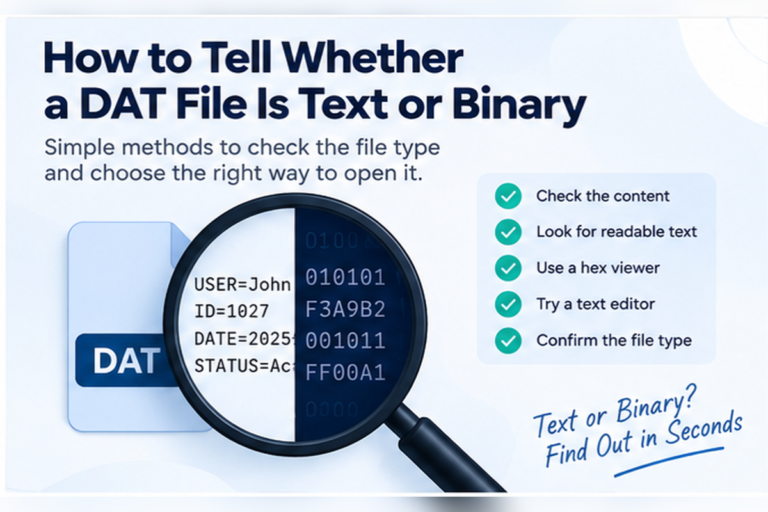
If the file looks like this, use a hex view or the original application.
Our guide on how to tell whether a DAT file is text or binary can help you decide before trying Excel.
Excel-Friendly DAT Files vs Binary DAT Files
| What you find | Excel useful? | Better next step |
|---|---|---|
| Comma-separated rows | Yes | Import as delimited text |
| Tab-separated rows | Yes | Choose tab as the delimiter |
| Pipe-separated records | Yes | Choose pipe as a custom separator if supported |
| Readable text without clear columns | Limited | Use a text editor or viewer first |
| Mostly strange symbols | No | Check whether it is binary |
| Proprietary application data | Usually no | Use the original software |
Why Does All the Data Appear in One Excel Column?
This usually means Excel did not use the correct delimiter.
Imagine the source file contains:
101|Keyboard|34|29.95
If Excel expects commas instead of pipes, it may treat the entire line as one value.
The fix is to import the data again and select the actual separator used by the file.
Why Are Numbers or Dates Changing in Excel?
Excel may automatically interpret imported values as numbers, dates, percentages, or scientific notation.
This can be convenient, but it can also cause problems.
For example, an identifier such as:
001245
may lose its leading zeros if Excel treats it as a number.
A value that resembles a date may also be converted into Excel’s date format even if it was meant to remain a text code.
Check important columns during import. Product codes, account identifiers, ZIP codes, serial numbers, and other values may need to be treated as text.
Common Problems When Opening DAT Files in Excel
Everything appears in one column
The wrong delimiter was selected. Inspect the source and import it again with the correct separator.
Characters look wrong
The text encoding may not match the import settings, or the file may not be text at all.
Leading zeros disappear
Excel is treating identifiers as numbers. Import the affected column as text.
Rows look random
The file may be binary or use a proprietary structure that Excel does not understand.
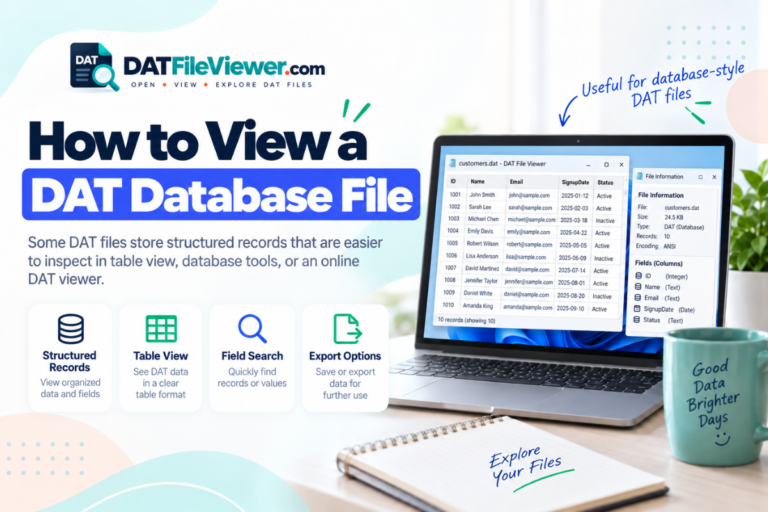
Can Excel Open a DAT Database File?
Sometimes, but the phrase “DAT database file” covers many different things.
If the DAT file contains plain-text database exports, Excel may work well. If it contains records in a private binary database structure, Excel cannot automatically decode it.
A database application may store field definitions, indexes, record lengths, and values in a binary layout that only the original software understands.
In that case, you need either the original application or a tool specifically designed for that database format.
Can Excel Open a DAT File Created by a Game?
Usually not in a meaningful way.
Games often use DAT files for maps, textures, indexes, configuration data, saved state, or other resources. Some small configuration DAT files may contain readable text, but large game DAT files are often binary or proprietary.
Opening such a file in Excel will not turn game resources into rows and columns.
Can You Edit a DAT File With Excel?
You can edit data after importing a compatible text DAT file, but be careful if the original application still depends on that file.
Spreadsheet software may change:
- Number formatting
- Date formats
- Leading zeros
- Quoting rules
- Character encoding
- Line endings
- Delimiter structure
If you only need the data for analysis, keep the original DAT file untouched and save your work as a separate Excel workbook or CSV file.
Should You Convert a DAT File to Excel?
Only if the DAT file contains data that can sensibly become spreadsheet rows and columns.
For a delimited text DAT file, conversion can be straightforward. You import the records and save them in an Excel format.
For a binary DAT file, real conversion requires software that understands the binary structure first. Excel alone cannot provide that interpretation.
This is one reason identifying the internal format matters more than the extension. See Text DAT Files vs Binary DAT Files for the core differences.
What If You Only Want to Inspect the Data?
If your goal is simply to find out whether Excel is appropriate, inspect the DAT file first.
You can look for:
- Readable column headings
- Repeated rows
- Consistent delimiters
- Numbers and dates in regular positions
- Plain-text records
If those signs are present, Excel is worth trying.
If the file contains mostly unreadable data, a spreadsheet is probably the wrong tool.
Excel vs Notepad for DAT Files
Notepad and Excel solve different problems.
Notepad is better for inspecting general readable text. Excel is better when the text already has a clear row-and-column structure.
If you are not sure which one to start with, a text or DAT viewer can reveal the structure first. You can also read Can You Open a DAT File With Notepad? for a direct comparison with text editing.
What If You Do Not Have Excel?
You do not need Excel just to inspect a DAT file.
If your first goal is to determine whether the file contains readable text or structured records, you can use a browser-based DAT viewer. Suitable table data can then be exported to CSV and opened later in a spreadsheet program.
If you want to avoid installing software entirely, see How to Open a DAT File Without Installing Software.
Check Your DAT File Before Opening It in Excel
See whether the file contains readable rows, detected delimiters, table-style data, or binary content before choosing a spreadsheet workflow.
View Your DAT FileFrequently Asked Questions
Can Excel open a .DAT file?
Yes, Excel can work with some DAT files, especially those containing readable delimited text. It cannot automatically decode every DAT format.
How do I open a DAT file in Excel with columns?
Import the DAT file as text and select the separator used between fields, such as a comma, tab, semicolon, or pipe. Check the preview before loading the data.
Why does my DAT file appear in one Excel column?
Excel probably did not recognize the correct delimiter. Import the file again and select the separator used in the DAT data.
Can Excel read a binary DAT file?
Not in a general way. Excel does not know how an arbitrary binary DAT file is structured. You may need a hex viewer or the program that created the file.
Should I rename DAT to CSV before opening it in Excel?
No. Renaming does not convert the file. If the DAT file already contains delimited text, import it directly or create a real CSV export.
Why did Excel remove zeros from my DAT data?
Excel may have interpreted an identifier as a number. Import that column as text if leading zeros need to be preserved.
Can I save a DAT file as XLSX?
Yes, if Excel can correctly import the data. Save the imported spreadsheet as a new XLSX file and keep the original DAT file unchanged.
Excel Works Best With Structured Text DAT Files
Excel can be a useful DAT file tool when the contents already look like a table.
If you see consistent rows and delimiters, import the file and tell Excel how the fields are separated. Check identifiers, dates, and number formats carefully before saving.
If the file contains binary or proprietary data, Excel is the wrong tool. Use a hex viewer, DAT viewer, or the original application instead.
The easiest approach is to inspect the file before importing it. You can open the DAT file online to check text, table, and hex views and then decide whether Excel makes sense.