How to Open a DAT File on Mac
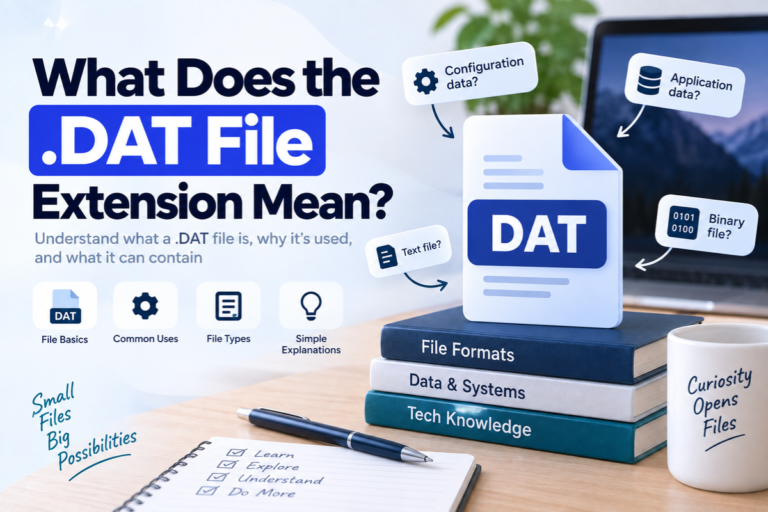
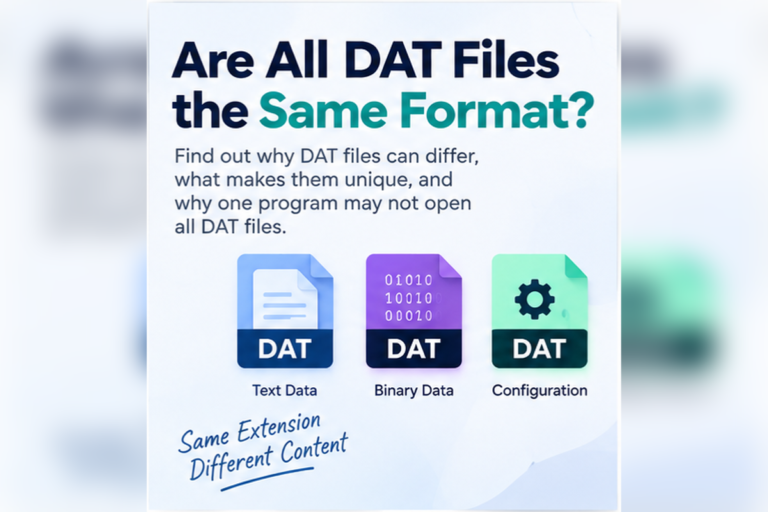
A DAT file can be difficult to open on a Mac because the .dat extension does not describe one standard file format. One DAT file may contain plain text, while another may hold video, database records, program settings, or binary data.
macOS may not know which app should open the file. You may double-click it and see a message saying there is no application set to open the document.
That does not always mean the file is damaged. It usually means you need to identify what kind of data is inside before choosing an app.
This guide shows you the safest ways to open and inspect a DAT file on a Mac.
In this guide
- What is a DAT file?
- Check where the file came from
- Try Quick Look
- Open a DAT file with TextEdit
- Open table-style DAT data
- Use a DAT file viewer
- Use the original application
- Open video DAT files with VLC
- Show file extensions on Mac
- Identify binary DAT files
- Fix common DAT file problems
What Is a DAT File?
DAT stands for data. It is a general file extension used by many different programs.
This is important because DAT is not one universal format. A PDF usually contains a document. A JPG usually contains an image. A DAT file can contain many different types of information.
A DAT file may store plain text, application settings, database records, game data, cached information, video, email data, or binary program files.
The file extension alone is not enough.
You often need to know where the DAT file came from before you can choose the right Mac application.
Two DAT files with similar names may still use completely different internal formats.
First, Check Where the DAT File Came From
The source of the file is often your best clue.
If the DAT file came from a specific Mac app, start with that app. If it came from a game folder, it may contain resources that only the game can read.
A DAT file exported from business software may contain customer records. A file received by email may contain message data or an attachment.
Look at the file name as well.
Example file names
settings.dat
customers.dat
video.dat
backup.dat
records.dat
Names such as these can give you a clue, although they do not prove what format is inside.
Work with a copy.
Before you edit, rename, or convert an important DAT file, duplicate it in Finder. Keep the original unchanged in case an application still needs it.
Method 1: Try Quick Look
macOS includes Quick Look, which lets you preview many files without opening an application.
It may not understand every DAT format, but it is a quick first test.
- Open Finder.
- Find the DAT file.
- Click the file once to select it.
- Press the Space bar.
- Check whether macOS shows a useful preview.
If Quick Look shows readable information, you already know the file contains content that macOS can recognize.
If it only shows a generic file icon, try another method.
Method 2: Open the DAT File With TextEdit
TextEdit is a good choice when the DAT file may contain plain text.
To try it, Control-click or right-click the DAT file in Finder. Choose Open With and select TextEdit.
A readable DAT file may look like this:
Example text DAT file
UserID=5021
Name=Alex Morgan
Status=Active
Device=Mac
LastLogin=2026-09-14
If you see normal words, numbers, settings, or dates, the file is probably text-based.
You may also see structured records such as:
Structured text
1001,John,London,Active
1002,Sarah,Bristol,Active
1003,David,Leeds,Inactive
This type of file may be easier to view in a spreadsheet application.
If TextEdit shows random symbols or unreadable characters, close the file without making changes. The file is probably binary or uses another encoding.
Method 3: Open Table-Style DAT Data
Some DAT files contain rows and columns of information.
These files may use commas, tabs, semicolons, or pipes to separate values.
For example:
Delimited DAT data
Name,Age,City,Status
John,34,London,Active
Sarah,29,Bristol,Active
David,41,Leeds,Inactive
If your DAT file looks like this, you can try opening or importing the data into Apple Numbers, Microsoft Excel, LibreOffice Calc, or another spreadsheet application.
If the spreadsheet app does not recognize the .dat extension, make a duplicate first. If you are certain the contents are already CSV-style text, you can rename the duplicate with a .csv extension and import it.
Renaming the file only helps when the contents already match the new format.
Method 4: Use a DAT File Viewer
A general DAT file viewer is useful when you do not know what is inside the file.
Instead of trying several Mac apps, you can inspect the contents first.
A useful viewer may provide Text, Table, and Hex modes.
| View | Best for | What it shows |
|---|---|---|
| Text | Readable DAT files | Words, settings, logs, dates, and other text |
| Table | Delimited records | Rows and columns separated by commas, tabs, or similar characters |
| Hex | Binary or unknown files | Raw bytes displayed as hexadecimal values |
Hex view is useful when the file cannot be read as normal text. It does not decode every proprietary format, but it can confirm that the file contains binary data.
Not sure what is inside your DAT file?
Use our browser-based DAT File Viewer on your Mac to inspect readable text, table-style records, or binary data before choosing another application. Open DAT File Viewer
Method 5: Use the Application That Created the File
If you know which program created the DAT file, that program is often the best option.
Applications may use DAT files to store settings, saved information, cached resources, database records, or other internal data.
Open the original app and look for commands such as Open, Import, Load, or Restore.
Some DAT files are never meant to be opened directly in Finder. The application reads them automatically.
Do not edit application data without a reason.
A small change to an app’s DAT file may make the file unusable. Always keep an untouched copy.
Method 6: Try VLC if the DAT File Contains Video
Some DAT files contain video data. This is more common with older media formats and certain disc-based video files.
If you know or strongly suspect that the DAT file contains video, try VLC Media Player for Mac.
- Open VLC on your Mac.
- Choose File or the media open option.
- Select the DAT file.
- Check whether VLC recognizes the video stream.
Do not use VLC as a general DAT file opener. It will not properly read a DAT file that contains settings, database records, or game data.
How to Show File Extensions on Mac
macOS can hide some file extensions. Showing them makes it easier to check exactly what file you have.
- Open Finder.
- Open Finder Settings. On older versions of macOS, this may be called Preferences.
- Choose the Advanced section.
- Enable Show all filename extensions.
You should then see the complete name:
Full file name
customer-records.dat
Can You Rename a DAT File on Mac?
Yes, but changing the extension does not convert the data.
If you rename:
Original
data.dat
to:
Renamed
data.txt
the information inside the file stays exactly the same.
If the file already contains plain text, the new extension may make it easier to open. If the file is binary, changing it to TXT will not make the content readable.
Always rename a duplicate rather than the original.
How to Tell if a DAT File Is Binary
A binary DAT file usually looks like nonsense in TextEdit.
You may see unusual symbols, blocks, or random characters.
That does not mean the file is corrupted.
Binary formats are common because programs can store information efficiently without using human-readable text.
Games, databases, business applications, and other software may all use binary DAT files.
A hex viewer can show you the raw data. The values may look something like this:
Example hex data
00000000  44 41 54 00 10 2A 7F 03
00000008  00 18 4C 91 FF 20 00 7A
00000010  42 11 03 00 91 A4 00 0F
Hex data can help confirm that a file is binary, but you still need to know its format if you want to understand the records inside.
Why Won’t My DAT File Open on Mac?
There are several reasons why macOS may not be able to open a DAT file.
| Problem | Possible reason | What to try |
|---|---|---|
| No app is assigned | macOS does not recognize the DAT format | Try TextEdit or a DAT viewer |
| Unreadable characters | The file may be binary or encoded | Use Hex view or the original program |
| Data looks like rows | The DAT file may contain delimited text | Try Numbers, Excel, or Table view |
| The file is 0 bytes | The file may be empty | Check another copy or restore a backup |
| An app rejects the file | The format may be proprietary or damaged | Check which application originally created it |
Is It Safe to Open an Unknown DAT File on Mac?
A DAT file is not automatically dangerous, but you should be careful with files from unknown sources.
Be cautious with unexpected email attachments, downloads, or files sent through messages.
Do not install unknown software simply because a website claims that you need it to open the file.
If you only want to inspect the contents, start with TextEdit, Quick Look, or a trusted DAT viewer.
Which Mac App Should You Try First?
| DAT file type | Good first choice |
|---|---|
| Plain text | TextEdit |
| Unknown DAT file | DAT File Viewer |
| Rows and columns | Numbers, Excel, or Table view |
| Video data | VLC Media Player |
| Binary data | Hex viewer or original application |
| Program-specific data | The application that created the file |
Quick summary
- Check where the DAT file came from before choosing an application.
- Try Quick Look for a fast preview.
- Use TextEdit if the file may contain readable text.
- Use Numbers or Excel for structured table data.
- Use a DAT viewer when the file type is unknown.
- Try VLC only when the DAT file is likely to contain video.
- Use the original application for program-specific files.
- Keep an untouched copy before renaming or editing the file.
Frequently Asked Questions
Can a Mac open DAT files?
Yes, but the correct app depends on the contents. TextEdit can open some text DAT files, spreadsheet apps can handle some table data, and proprietary files may require the program that created them.
What is the best DAT file viewer for Mac?
A general DAT viewer is useful for unknown files because it can help you inspect text, structured table data, and binary content before choosing another application.
Can TextEdit open a DAT file?
Yes, if the DAT file contains readable text. If TextEdit shows random symbols or unreadable characters, the file may be binary or use a format designed for another program.
Can Apple Numbers open a DAT file?
Numbers may be useful when the DAT file contains text arranged as rows and columns. You may need to import the data or work with a duplicate that uses a suitable CSV format.
Why does my DAT file show strange characters on Mac?
The file may contain binary data, use another text encoding, be compressed, be encrypted, or belong to a specific application.
Can I convert a DAT file to TXT on Mac?
You can save or rename a DAT file as TXT when it already contains plain text. Changing the extension does not convert binary data into readable text.
Final Thoughts
The easiest way to open a DAT file on Mac is to identify the type of data before choosing an application.
Start with the file’s source. Try Quick Look or TextEdit if it may contain readable text. Use Numbers or Excel if the file contains rows and columns. Try VLC only if you know the file contains video.
If the file looks like binary data or you do not know what created it, inspect it with a DAT file viewer before making changes.
Keep an untouched copy of the original file while you test. This gives you a safe backup if the DAT file belongs to an application or uses a proprietary format.
Open Your DAT File on Mac
Use our browser-based DAT File Viewer to inspect text, table-style records, and binary DAT files directly from your Mac. Open DAT File Viewer
If your WordPress theme already displays the post title as an H1, remove the first H1 from this HTML so the page does not show two article titles.