How to Convert DAT to CSV
You can convert a DAT file to CSV when the DAT file contains structured text that can be divided into rows and columns. Common examples include comma-separated, tab-separated, semicolon-separated, and pipe-separated records.
A binary DAT file cannot be turned into useful CSV simply by changing the extension. You first need to understand the records and fields inside the file.
What Does DAT to CSV Conversion Mean?
CSV stands for comma-separated values. It is designed for table-style data.
A useful CSV file has rows and fields that can be represented in columns. For example:
1001|Aisha|Pakistan|Active
1002|Daniel|Canada|Active
1003|Sofia|Spain|Inactive
A proper conversion could create:
1001,Aisha,Pakistan,Active
1002,Daniel,Canada,Active
1003,Sofia,Spain,Inactive
Which DAT Files Are Good Candidates for CSV?
Good candidate
Readable rows with consistent commas, tabs, semicolons, or pipes.
Needs checking
Readable records with inconsistent fields, unusual quoting, or unknown encoding.
Not directly convertible
Binary databases, game resources, media data, compressed files, or proprietary application formats.
If you are not sure which type you have, start with How to Tell Whether a DAT File Is Text or Binary.
Common DAT Delimiters You May Need to Convert
,
The file may already be CSV-style.
[TAB]
Common in text exports and data tables.
;
Often used where commas may appear in values.
|
Easy to recognize in plain-text records.
Your DAT File Viewer supports detection of these common delimiter styles and can export suitable table-style data to CSV.
How to Convert DAT to CSV Online
Select the file and inspect the raw content before making any changes.
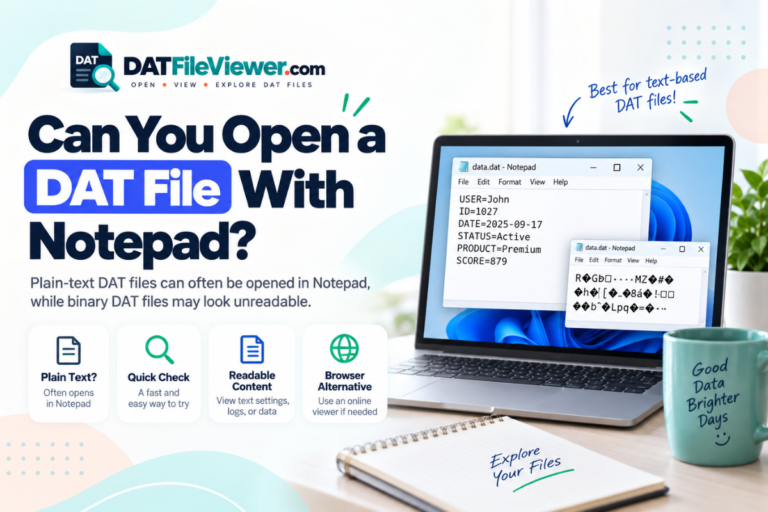
Confirm that the file contains text records rather than mostly binary bytes.
Identify whether fields are separated by commas, tabs, semicolons, pipes, or another consistent character.
Make sure the records line up in the expected columns and that fields are not shifting between rows.
Create a separate CSV file while keeping the original DAT file unchanged.
Converting a CSV-Style DAT File
The easiest case is a DAT file that already contains comma-separated values.
order_id,customer,date,total
5011,Aisha,2026-09-10,45.90
5012,Daniel,2026-09-11,118.00
5013,Sofia,2026-09-12,24.50
In this case, conversion mainly means creating a proper .csv copy while preserving the text structure and encoding.
For more detail, see How to Read CSV-Style Data Inside a DAT File.
Converting a Tab-Separated DAT File to CSV
Tab-separated data can also convert cleanly.
Suppose the original file contains:
sku	product	stock	price
A101	Keyboard	28	29.95
A102	Mouse	54	18.50
A103	Monitor	11	189.00
A CSV export can use commas instead:
sku,product,stock,price
A101,Keyboard,28,29.95
A102,Mouse,54,18.50
A103,Monitor,11,189.00
If you are working with this format, read How to Read Tab-Separated DAT Files.
CSV Conversion Must Handle Commas Inside Values
A proper DAT-to-CSV conversion needs to protect values that contain commas.
Consider this pipe-separated DAT file:
1001|Aisha|24 Main Street, Karachi
1002|Daniel|18 King Road, Toronto
A correct CSV export would quote those fields:
1001,Aisha,"24 Main Street, Karachi"
1002,Daniel,"18 King Road, Toronto"
What About Quotation Marks Inside a Field?
CSV uses its own quoting rules.
Suppose a DAT record contains:
101|Keyboard|Model "Plus", wireless
A correct CSV field may need to become:
101,Keyboard,"Model ""Plus"", wireless"
The field is surrounded by quotes because it contains a comma. The quotation marks inside the value are doubled.
This is why a CSV-aware exporter is safer than manual find-and-replace.
Can You Convert a DAT Database File to CSV?
Sometimes.
If the DAT database stores clear text records, CSV can be a practical export format.
For example:
1001|Aisha|Active|2026-09-10
1002|Daniel|Active|2026-09-11
can map naturally to spreadsheet rows.
A proprietary binary database is different. The software may need to understand field offsets, data types, indexes, encodings, or compression before meaningful records can be exported.
See How to Read Database Records Stored in a DAT File for that workflow.
Why Binary DAT Files Cannot Be Directly Converted to CSV
CSV is text with a table structure. Binary DAT files may store numeric values, media, indexes, compressed blocks, or custom records as raw bytes.
A binary file might look like this:
00000000  01 00 00 00 A8 31 04 00  41 69 73 68 61 00 00 00
00000010  02 00 00 00 C4 32 04 00  44 61 6E 69 65 6C 00 00
For example, four bytes might represent an integer, timestamp, floating-point number, record length, or something else entirely.
Without the schema, converting those bytes to comma-separated text would involve guessing.
DAT to CSV vs DAT to TXT
| Situation | CSV | TXT |
|---|---|---|
| Clear rows and columns | Best choice | Possible but less structured |
| Plain settings | Usually unnecessary | Better choice |
| Comma-separated records | Best choice | Can preserve raw text |
| Tab-separated records | Useful for spreadsheets | Can preserve tabs |
| Binary data | Not directly | Not directly |
If you only need readable text rather than table data, see How to Convert DAT to TXT.
Can Excel Convert DAT to CSV?
Yes, if Excel can correctly import the DAT file as structured text.
A typical workflow is:
- Import the DAT file as text data.
- Choose the correct delimiter.
- Review the column preview.
- Set important columns to appropriate data types.
- Load the data.
- Save or export a CSV copy.
Be careful with automatic formatting. Excel may change leading zeros, long numbers, or date-like strings.
See Can You Open a DAT File With Excel? for more detail.
Can Google Sheets Help Convert DAT to CSV?
Yes, when the DAT file contains structured text that can first be imported correctly.
Once the rows and columns are visible in Google Sheets, you can export the sheet in CSV format.
Do not use Google Sheets as a binary DAT decoder. Inspect the source first and confirm that the file really contains text records.
See Can You Open DAT Files With Google Sheets?.
Check Data Quality Before Exporting
Consistent columns
Most records should contain the expected number of fields.
Correct delimiter
Make sure the separator is not simply a character that happens to appear inside values.
Correct encoding
Names and non-English characters should display correctly before export.
Proper quoting
Fields containing commas or quotes must follow valid CSV quoting rules.
Why Some DAT to CSV Conversions Put Everything in One Column
This usually means the wrong delimiter was selected.
For example, if the source uses pipes:
1001|Aisha|Active
but the importer expects commas, it sees the whole line as one field.
Choose pipe as the source delimiter first. The export process can then write the parsed fields as valid CSV.
Why Some Rows Have Too Many Columns
Possible causes include:
- A delimiter inside a field
- Missing quotation marks
- Mixed delimiters
- Corrupted or partial records
- An incorrect parsing rule
Always compare the raw record with the table preview when a row suddenly shifts.
Should You Rename DAT to CSV?
Renaming is not the same as conversion.
If you change:
records.dat
to:
records.csv
the contents remain exactly the same.
If the DAT file already contains valid CSV text, the renamed file may open correctly in spreadsheet software. But no transformation happened.
What If the DAT File Has No Header Row?
You can still convert it, but the CSV may not have meaningful column names.
For example:
1001|Aisha|Active
1002|Daniel|Active
can become:
1001,Aisha,Active
1002,Daniel,Active
However, you still need outside context to know whether the columns mean ID, name, status, or something else.
Do not invent headers unless you understand the format.
Can Large DAT Files Be Converted to CSV?
Yes, if the underlying data is suitable, but large files need more care.
Preview a limited section first. Confirm:
- The delimiter
- The number of columns
- The header structure
- Encoding
- Whether rows remain consistent later in the file
Your DAT viewer includes large-file protection and preview limits, which can help with the initial inspection stage.
Which Conversion Route Should You Choose?
Best Workflow for DAT to CSV Conversion
The safest process is:
- Keep the original DAT file unchanged.
- Inspect the file in text and table views.
- Confirm that it contains structured textual records.
- Identify the source delimiter.
- Check field counts across several rows.
- Review quoting and encoding.
- Export a separate CSV file.
- Open the CSV and verify that the columns still align.
This produces a much more reliable result than changing the extension or replacing separators blindly.
Ready to Convert Structured DAT Data to CSV?
Inspect the original file, detect common delimiters, preview table-style records, and export suitable structured data to a separate CSV file.
View Your DAT FileFrequently Asked Questions
Can any DAT file be converted to CSV?
No. CSV is suitable for data that can be represented as rows and columns. Binary, media, compressed, and proprietary DAT files must be interpreted before meaningful CSV output is possible.
How do I convert DAT to CSV online?
Open the DAT file in a viewer, identify the delimiter, confirm the table structure, and export a separate CSV file if the data is suitable.
Can I rename DAT to CSV?
You can change the filename, but that does not convert the data. It only works as expected when the DAT file already contains valid CSV-style text.
Can I convert tab-separated DAT data to CSV?
Yes. Parse the tab-separated fields first, then write them using valid CSV rules.
Why does my CSV open in one column?
The source or spreadsheet program may be using the wrong delimiter. Check whether the original DAT file uses commas, tabs, semicolons, or pipes.
Can a binary DAT database be converted to CSV?
Only after its records and fields are decoded correctly. A generic CSV converter cannot determine an undocumented binary schema automatically.
Should I use CSV or TXT for a DAT file?
Use CSV when the data has clear rows and columns. Use TXT when you mainly need to preserve readable text without a spreadsheet structure.
DAT to CSV Conversion Starts With Understanding the Records
A reliable DAT to CSV conversion begins with the contents of the file, not its extension.
If the DAT file contains comma-separated, tab-separated, semicolon-separated, or pipe-separated records, CSV export may be simple. Check quoting, encoding, empty fields, and column counts before creating the output.
If the file is binary or proprietary, identify the structure first. A filename change cannot turn unknown binary bytes into spreadsheet data.
Keep the original DAT file unchanged and create a separate CSV copy once the records have been verified.
You can open your DAT file online to inspect text, detect common delimiters, preview table-style data, and export suitable records to CSV.