How to Open a DAT File on Linux
Linux gives you more ways to inspect a DAT file than most operating systems. You can check the file type, read plain text, inspect binary data, search for readable strings, or open the file with the program that created it.
The main problem is that .dat does not describe one standard format. A DAT file can hold text, database records, program settings, video, game data, or binary information.
That means there is no single Linux program that opens every DAT file correctly.
The best approach is to inspect the file first. Linux includes several useful command-line tools that can help you work out what is inside before you install anything.
What Is a DAT File in Linux?
A DAT file is simply a file that uses the .dat extension. The extension usually means data, but it does not tell Linux exactly how the data is stored.
One DAT file may be ordinary UTF-8 text. Another may contain a custom binary structure used by a game. Another may hold comma-separated records that can be opened in LibreOffice Calc.
Linux does not depend only on file extensions. Many Linux tools inspect the file contents to identify the format.
That makes Linux especially useful when you are dealing with an unknown DAT file.
Start With the file Command
The first command to try is file. It examines the contents of a file and attempts to identify its type.
Open a terminal and move to the folder that contains your DAT file.
$ file sample.dat
You may get a result such as:
sample.dat: ASCII text
That tells you the file is probably safe to inspect with a text editor.
You can also ask Linux for the MIME type:
$ file --mime-type sample.dat
A text file may return something similar to text/plain. A binary file may return a more specific type or simply application/octet-stream.
Run file before opening an unknown DAT file. It often gives you enough information to choose the next tool.
Open a Text DAT File
If the file command identifies the DAT file as text, you have several options.
Use less
less is a good choice for reading a file without editing it. You can scroll, search, and quit without making changes.
Use a Text Editor
You can open the file in editors such as Gedit, Kate, Mousepad, VS Code, Vim, Nano, or another editor installed on your system.
To read the file with less:
$ less sample.dat
Press Q when you want to exit.
For a small file, you can also use:
$ cat sample.dat
A readable DAT file may look like this:
UserID=1048
Name=Daniel
Status=Active
Platform=Linux
LastLogin=2026-09-14
If the file contains normal text like this, you do not need special DAT software.
Check Only the Beginning of a Large DAT File
Avoid printing a huge DAT file directly into your terminal.
If the file is large, inspect only the first few lines with head.
$ head -n 20 large-file.dat
This displays the first 20 lines.
If the data looks structured, you can then decide whether to use a text editor, spreadsheet, database program, or another tool.
Find Readable Text Inside a Binary DAT File
A DAT file may contain binary data while still holding readable names, paths, version numbers, URLs, or messages.
The strings command extracts printable text from a binary file.
$ strings sample.dat
You may see output such as:
AppVersion=4.2
assets/images/
config
userdata
database
This does not fully decode the file, but it can give you important clues about the program or format.
Inspect a DAT File in Hex
If the file is binary, a hex dump lets you inspect the raw bytes.
One common Linux tool is xxd.
$ xxd sample.dat | head
You may see:
00000000: 4441 5400 0102 0000 4f50 454e 0000  DAT.....OPEN..
00000010: 1a00 2400 0000 0042 1000 2000 0000  ..$....B.. ...
You can also use:
$ hexdump -C sample.dat | head
A hex view is helpful for advanced inspection, but it does not automatically explain a proprietary format.
Use a DAT File Viewer in Your Browser
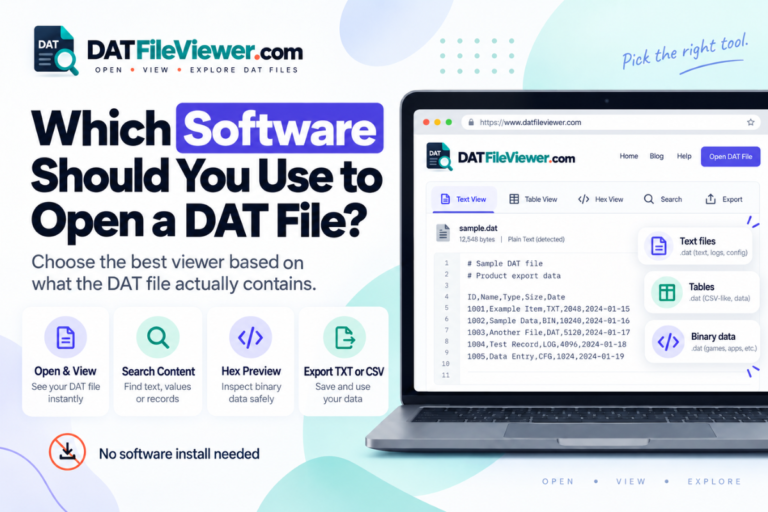
If you prefer not to work in the terminal, a browser-based DAT file viewer can be easier.
This is useful for desktop Linux users who want to quickly check whether a DAT file contains text, table data, or binary information.
| View | Good For | What It Shows |
|---|---|---|
| Text | Readable DAT files | Settings, logs, names, dates, and text records |
| Table | Delimited records | Rows and columns separated by commas, tabs, or similar characters |
| Hex | Binary DAT files | Raw hexadecimal bytes |
Inspect a DAT File Without Installing Software
Use our DAT File Viewer in your Linux browser to inspect text, table-style records, and binary data before choosing another program.
Open DAT File ViewerOpen Table-Style DAT Files in LibreOffice
Some DAT files are really structured text files.
They may contain data such as:
ID,Name,Department,Status
1001,Alice,Sales,Active
1002,David,Support,Active
1003,Sarah,Finance,Inactive
If the file uses commas, tabs, semicolons, or another clear separator, LibreOffice Calc may be able to import it.
Open Calc and use its file import options. Choose the separator that matches the file.
Save the result as a new spreadsheet or CSV file. Do not overwrite the original DAT file unless you know it is safe.
Try VLC if the DAT File Contains Video
Some DAT files contain video data, especially files created from older media sources.
If you know that the file contains video, VLC is worth trying.
- Open VLC.
- Choose the option to open a file.
- Select the DAT file.
- Check whether VLC recognizes the media stream.
This method only makes sense when the file is likely to contain media.
VLC will not correctly read a DAT file that contains application settings, game resources, or database records.
Use the Program That Created the DAT File
If you know where the DAT file came from, use that information.
Many Linux applications store internal information in DAT files. A file may contain cached data, application settings, databases, indexes, or saved records.
In these cases, the DAT file may not be designed for direct viewing.
Open the original program and look for options such as Open, Import, Load, or Restore.
A DAT file may be important to an application. Changing one byte can make the file unusable if the program expects a strict binary structure.
Can You Rename a DAT File on Linux?
Yes, but renaming the extension does not convert the contents.
For example:
$ mv records.dat records.txt
This only changes the file name.
If records.dat was already plain text, the new extension may make it easier to open in some applications. If it contains binary data, renaming it to TXT will not make it readable.
Create a copy first if the file matters.
What Program Should You Use?
| DAT File Type | Good Linux Tool | Why |
|---|---|---|
| Unknown file | file | Attempts to identify the format |
| Plain text | less, Gedit, Kate, Vim, Nano | Lets you read normal text safely |
| Binary data | xxd or hexdump | Shows raw bytes in hexadecimal form |
| Binary with embedded text | strings | Extracts readable text from binary data |
| Rows and columns | LibreOffice Calc | Can import delimited records |
| Unknown DAT file | DAT File Viewer | Offers text, table, and hex inspection |
| Video | VLC | Can play compatible media data |
| Application-specific data | Original application | Understands the program’s own file structure |
Why Won’t My DAT File Open on Linux?
A DAT file may fail to open because you are using the wrong program.
The file may also be binary, compressed, encrypted, corrupted, incomplete, or stored in a proprietary format.
Quick troubleshooting order
- Check the file size with your file manager or
ls -lh. - Run
file filename.dat. - If it is text, try
less. - If it is binary, try
stringsand a hex view. - Check where the file came from.
- Use the original application if the format is proprietary.
Is It Safe to Open an Unknown DAT File?
A DAT file is not automatically dangerous, but unknown files should still be handled with care.
Do not run a file as an executable simply because it has a DAT extension.
Be careful with files downloaded from unknown websites or sent through unexpected messages.
Reading a file with less, inspecting it with file, or viewing its bytes is different from executing it.
If the file contains important data, keep an untouched backup before testing conversions or edits.
Frequently Asked Questions
How do I open a DAT file in Linux?
Start with the file command to identify the contents. Use a text editor for text files, LibreOffice for table data, VLC for compatible video, or the original application for program-specific data.
What command reads a DAT file in Linux?
There is no single command for every DAT file. Try file first. Use less for readable text, strings for text inside binary files, and xxd or hexdump for raw binary data.
Can Linux open DAT files without extra software?
Yes, in many cases. Standard command-line tools can identify and inspect text or binary DAT files without installing a dedicated DAT application.
Can I convert DAT to TXT on Linux?
If the DAT file already contains plain text, you can save or rename a copy as TXT. Renaming a binary DAT file will not convert its contents.
How do I know if a DAT file is binary?
Run the file command and inspect the file with xxd, hexdump, or strings. A binary file usually does not display as normal readable text.
Final Thoughts
Linux gives you several good ways to investigate a DAT file before choosing an application.
Start with the file command. If the file is text, read it with less or a text editor. If it is binary, use strings, xxd, or hexdump to inspect it.
Use LibreOffice when the DAT file contains rows and columns. Try VLC only when you know the file contains video. If the file belongs to a specific program, that program is usually the safest choice.
Most importantly, do not assume that every DAT file uses the same format. Identify the contents first and keep a backup before editing or converting important data.
Open Your DAT File on Linux
Inspect your DAT file as readable text, structured table data, or hexadecimal bytes directly from your browser.
Open DAT File Viewer